Thursday, 20 August 2020

How to Fix Runtime Error R6025


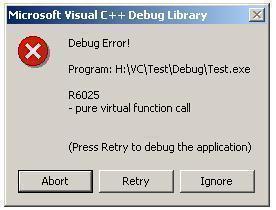
Even though the Microsoft Windows operating system (OS) is one of the most used in the world, computer users may encounter the Runtime Error R6025. The error results from a program or application becoming corrupted. After the error is thrown, the application causing the problem must be deleted and reinstalled in order to clear the error from the Windows OS.

How to Fix Runtime Error R6025

Step 1 – Exit the program that triggered the R6205 runtime error by clicking the “X” in the upper right hand corner or clicking the “File” and “Exit” menu options.

Step 2 – Open the Windows Task Manager by clicking the “Ctrl” + “Alt” + “Delete” keys simultaneously. Choose the “Start Task Manager” menu choice on the subsequently displayed menu.

Step 3 – Click the “Processes” menu tab and choose the “Image Name” menu button.

Step 4 – Verify that the program that threw the Runtime Error R6025 is not listed on the listing of programs. If the application is running, click the name and choose the “End Process” menu button.

Step 5 – Choose the “Start” menu button and click the “Control Panel” menu option. In Windows XP, choose “Settings” and “Control Panel” to access the Windows Control Panel.

Step 6 – Select the “Programs and Features” icon or the “Add/Remove Programs” menu option depending on the version of Windows installed on the computer.

Step 7 – Select the “Remove Program” menu option underneath the application that triggered the Runtime Error R6025 and follow the default menu prompts to delete the program.

Step 8 – Exit the Windows Control Panel then click the “Start” menu.

Step 9 – Enter “Cleanmgr” in the Search text field then press the “Enter” key.

Step 10 – Select the “C” drive and allow the program to clean the files on the computer’s hard drive.

Step 11 – Restart the computer after disk clean-up is complete and reinstall the application that was triggering the R6205 runtime error.

Monday, 10 August 2020

Error Number 0x80072ee2


The Microsoft Corporation has designed the Windows Operating System (OS) to query the Microsoft Update web site on recurring intervals in order to check for and install required updates on your computer. If your computer experiences difficulty in connecting to the Windows Update server, then it can result in throwing error number 0x80072ee2 on your computer and will prevent you from updating the computer until the error clears.

What Other Error Codes Are Associated With the Windows Update Server?

Error 0x80072ee2 is not the only error code that is associated with a failure to connect with the Windows Update server. Other errors that may be associated with your computer failing to connect with the update server are: Error 0x80070008, Error 0x800705B4, Error 0x8007000E, Error 0x80072EFD, Error 0x80072EE7, Error 0x80072EEF, Error 0x80072EFE, Error 0x8024400E, Error 0x80072F76, Error 0x80244016, Error 0x80072F78, Error 0x80244022, Error 0x80090305, Error 0x8024402F, Error 0x8009033F, Error 0xC80003FA, Error 0x80244008, Error 0xC800042D, Error 0x8024400A, Error 0x80071A90, and Error 0x8024400D. The majority of these errors are thrown due to temporary issues that are associated with high network traffic or an outage at the Windows Update Server. Before proceeding with troubleshooting the error, you should wait 15-30 minutes and attempt to start the Windows Update application to check for updates.

Steps to Fix Error Number 0x80072ee2


Step 1 – Wait approximately 30 minutes and attempt to run Windows Live Update again. This will fix the error in the majority of cases that are caused by problems on the Microsoft Server due to high Internet traffic or other server-side problems.

Step 2 – Disable any third-party firewall programs that are installed and running on your computer. Most third-party firewall programs will let you do this by opening the respective control or configuration panel for the application and selecting the appropriate “disable” menu option. You will want to turn on the Windows Firewall (if not running already) to ensure that your computer has some level of protection while your regular firewall is disabled. To turn on the Windows Firewall: select the “Start” and “Control Panel menu options. Then, choose the “System and Security” menu choice followed by clicking the “Windows Firewall” menu option. Toggle the “On/Off” menu switch to the “On” position and enter the admin password for the computer (if prompted).

Step 3 – If the Update Server continues to fail to connect, temporarily disable any third-party antivirus programs that are on you computer. To disable these programs, open the respective control or configuration panel for the program and select the “Disable Virus Protection” or equivalent menu option. Attempt to run Windows Update and the error should be corrected. If this solves the problem, ensure you turn your antivirus protection back to the “On” state to keep your computer protected form computer malware.

Step 4– Add the Windows and Microsoft update sites to the “Trusted Sites” list in Internet Explorer. With Internet Explorer open, choose the “Tools” and “Internet Options” menu choices. Then, select the “Security” menu tab and choose the “Trusted Sites” option. Under “Sites” select the option to clear the “require server verification(https:) for all sites” check box. Then, enter the following sites in the “Add this Web site to the zone box”: update.microsoft.com and windowsupdate.microsoft.com and select the “Ok” button. Then, run the Windows Update application again to correct the error.

Tuesday, 14 July 2020

SNMP Trap


The SNMP (Simple Network Management Protocol) allows network management to communicate with different network components. Because of this, it is important for all network hardware to be equipped with an SNMP agent that allows for it to be communicated back to network management. Once the network is connected, the elements are able to send messages back to network management, and at the same time, network management can send messages to the elements for information. It is this constant back and forth between the network and all its elements that necessitates an SNMP.


What is an SNMP Trap?


An SNMP trap allows an element, such as a printer or scanner, to contact network management when there is a significant event. This is done via unsolicited SNMP messages. For example, if the printer is out of paper and an individual is trying to print, an SNMP trap will be sent to the computer with the message, “Out of paper, add more.” Or, if there is a power failure on one of the network elements, the SNMP Trap will let the network manager know so that he can take the necessary steps to correct the problem.

For the most part, an SNMP Trap is unnecessary when dealing with a single personal computer because one person can easily manage this. SNMP becomes important and helpful, though, when a network manager is dealing with numerous network elements that all have numerous elements themselves. This makes it very difficult to manually manage all of them. The SNMP Trap allows the manager to be notified when there is a problem so he can respond to it quickly without having to manually check everything to see what the error is.

For management to determine what is going on with the element that sent the trap, it needs to have a management information base (MIB) installed. What this does is allow the manager to determine which element is having problems. This provides the OID and any information that goes along with it so the manager can make an informed decision on what corrective measures to take.


What are the Definitions of an SNMP Trap?


There are a series of SNMP Trap definitions for RFC 1157. These are:

    Enterprise: Identifies which object sent the trap.
    Agent address: Gives the object’s address.
    Generic Trap Type: Provides generic types of traps.
    Specific Trap Code: Provides specific codes for traps.
    Time stamp: Gives the time between the last reinitialization and the trap generation.

Wednesday, 8 July 2020

Data Mining


Data mining is usually defined as searching, analyzing and sifting through large amounts of data to find relationships, patterns, or any significant statistical correlations. With the advent of computers, large databases and the internet, it is easier than ever to collect millions, billions and even trillions of pieces of data that can then be systematically analyzed to help look for relationships and to seek solutions to difficult problems. Besides governmental uses, many marketers use data mining to find strong consumer patterns and relationships. Large organizations and educational institutions also data mine to find significant correlations that can enhance our society.

While data mining is amoral in the fact that it only looks for strong statistical correlations or relationships, it can be used for either good or not so good purposes. For instance, many government organizations depend on data mining to help them create solutions for many societal problems. Marketers use data mining to help them pin point and focus their attention on certain segments of the market to sell to, and in some cases black hat hackers can use data mining to steal and scam thousands of people.

How does data mining work? Well the quick answer is that large amounts of data are collected. Usually most entities that perform data mining are large corporations and government agencies. They have been collecting data for decades and they have lots of data to sift through. If you are a fairly new business or individual, you can purchase certain types of data in order to mine for your own purposes. In addition, data can also be stolen from large depositories by hackers by hacking their way into a large database or simply stealing laptops that are ill protected.

If you are interested in a small case study on how data mining is collected, used and profited off of, you can look at your local supermarket. Your supermarket is usually an extremely lean and organized entity that relies on data mining to make sure that it is profitable. Usually your supermarket employs a POS (Point Of Sale) system that collects data from each item that is purchased. The POS system collects data on the item brand name, category, size, time and date of the purchase and at what price the item was purchased at. In addition, the supermarket usually has a customer rewards program, which also is input into the POS system. This information can directly link the products purchased with an individual. All this data for every purchase made for years and years is stored in a database in a computer by the supermarket.

Now that you have a database with millions upon millions of data fields and records what are you going to do with it? Well, you data mine it. Knowledge is power and with so much data you can uncover trends, statistical correlations, relationships and patterns that can help your business become more efficient, effective and streamlined.

The supermarket can now figure out which brands sell the most, what time of the day, week, month or year is the most busiest, what products do consumers buy with certain items. For instance, if a person buys white bread, what other item would they be inclined to buy? Typically we can find its peanut butter and jelly. There is so much good information that a supermarket can use just by data mining their own data that they have collected.

Wednesday, 1 July 2020

ODBC (Open Database Connectivity)


ODBC (Open Data Base Connectivity) is an interface to access databases via SQL queries. ODBC can be used as an access tool to various databases such as MS-Access, dBase, DB2, Excel, and Text. Through these Call Level Interface (CLI) specifications of the SQL Access Group, the OBDC allows a neutral way of accessing the data stored in personal computers and various databases. It was first created by Microsoft and Simba Technologies. ODBC 1.0 was initially released in September 1992, and eventually became a part of the international SQL standard in 1995. Microsoft originally shipped the ODBCs as a set of DLLs and still today, ships the set with every copy of Microsoft Windows. Today, more and more operating systems such as Unix and Apple are adopting the ODBC.

The strength of ODBC is that by providing a universal data access interface, it allows independent software companies and parties to not have to learn multiple application programming interfaces. To simply put, with ODBC, applications can simultaneously access, view, and modify database from numerous and quite diverse databases. This is because the ODBC “re-codes” the SQL queries so that it would be readable by the various different databases.
However, the ODBC also has its drawbacks. As managing a huge number of ODBC clients can mean an immense amount of drivers and DLLs being run, this could lead to a system administration overhead. Nonetheless, this minor issue led to further uses of the ODBC server technology (or the “Multi-Tier ODBC Drivers”) to alleviate the load. Also, as drivers are a key in ODBCs, some have raised the issue of the newer drivers’ stability, as often many have shown to have bugs in them.

How ODBC is Processed

To use the ODBC, three components are needed: ODBC client, ODBC driver, and a DBMS server (ex. Microsoft Access, SQL Server, Oracle, and FoxPro). Firstly, the ODBC client will use a command (referred to as “ODBC”) to interact (requesting and/or sending data) with the DBMS server (back-end). However, the DBMS server will not understand the command by the ODBC client yet, as the command has yet to be processed through the ODBC driver (front-end). So then, the ODBC driver will decode the command that can be processed by the ODBC server and be sent there. The ODBC server will then respond back to the ODBC driver which will translate the final output to the ODBC client.

ODBC Drivers

ODBC drivers are specific to each type of database.

Where to Get an Oracle ODBC Driver

The Oracle ODBC Drivers Download Page is the source for official Oracle ODBC drivers.
The Easysoft ODBC Oracle Driver improves on the stock Oracle ODBC drivers by providing improved performance and easier maintenance.
OpenLink Software provides both Single-Tier and Multi-Tier Oracle ODBC drivers.
Attunity provides a data adapter which includes an Oracle ODBC driver.

Where to Get a MySQL ODBC Driver

MySQL Connector/ODBC is the official MySQL ODBC driver.
OpenLink Software provides both Single-Tier and Multi-Tier MySQL ODBC drivers.

Sources for Other ODBC Drivers

To search for an ODBC driver for another database, check the unixODBC list of ODBC drivers which work with unixODBC.


ODBC Driver Managers

The two main ODBC driver managers for Unix are iODBC and unixODBC.
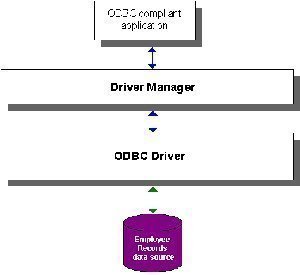
where to get an ODBC driver manager
iODBC (Independent Open DataBase Connectivity) is an Open Source platform independent implementation of both the ODBC and X/Open specifications. iODBC provides both an ODBC driver manager and an SDK that facilitates the development of database-independent applications. iODBC includes a GTK+-based administration tool.
iODBC has been ported to numerous platforms, including: Linux (x86, Itanium, Alpha, Mips, and StrongArm), Solaris (Sparc & x86), AIX, HP-UX (PA-RISC & Itanium), Digital UNIX, Dynix, Generic Unix 5.4, FreeBSD, MacOS 9, MacOS X, DG-UX, and OpenVMS.
unixODBC provides Unix applications with the same ODBC 3.51 API and facilities available under Windows. unixODBC provides a Driver Manager that supports the full ODBC API and performs the ODBC 3 to ODBC 2 translations with UNICODE to ANSI conversion. unixODBC also includes a set of graphical utilities that allow users to specify connections to DBMSes to be used by applications, a collection of ODBC drivers including a simple text based driver, an NNTP driver, a Postgres driver and others, and a selection of templates and libraries that to aid in the construction of ODBC drivers. unixODBC works with MySQL, Postgres, StarOffice/OpenOffice, Applixware, iHTML, PHP, Perl DBD::ODBC, and many other applications and drivers. Connection pooling is also provided to increase performance with applications such as PHP. unixODBC includes a QT-based administration GUI.
Thursday, 25 June 2020

Data Dictionary


A data dictionary is an integral part of a database. It holds information about the database and the data that it stores, i.e., the meta-data. Any well designed database will surely include a data dictionary as it gives database administrators and other users easy access to the type of data that they should expect to see in every table, row, and column of the database, without actually accessing the database.
Since a database is meant to be built and used by multiple users, making sure that everyone is aware of the types of data each field will accept becomes a challenge, especially when there is a lack of consistency when assigning data types to fields. A data dictionary is a simple yet effective add-on to ensure data consistency.
Some of the typical components of a data dictionary entry are:
•    Name of the table
•    Name of the fields in each table
•    Data type of the field (integer, date, text…)
•    Brief description of the expected data for each field
•    Length of the field
•    Default value for that field
•    Is the field Nullable or Not Nullable?
•    Constraints that apply to each field, if any
Not all of these fields (and many others) will apply to every single entry in the data dictionary. For example, if the entry were about the root description of the table, it might not require any information regarding fields. Some data dictionaries also include location details, such as each field’s current location, where it actually came from, and details of the physical location such as the IP address or DNS of the server.


Format and Storage

There exists no standard format for creating a data dictionary. Meta-data differs from table to table. Some database administrators prefer to create simple text files, while others use diagrams and flow charts to display all their information. The only prerequisite for a data dictionary is that it should be easily searchable.
Again, the only applicable rule for data dictionary storage is that it should be at a convenient location that is easily accessible to all database users. The types of files used to store data dictionaries range from text files, xml files, spreadsheets, an additional table in the database itself, to handwritten notes. It is the database administrator’s duty to make sure that this document is always up to date, accurate, and easily accessible.

Creating the Data Dictionary

First, all the information required to create the data dictionary must be identified and recorded in the design documents. If the design documents are in a compatible format, it should be possible to directly export the data in them to the desired format for the data dictionary. For example, applications like Microsoft Visio allow database creation directly from the design structure and would make creation of the data dictionary simpler. Even without the use of such tools, scripts can be deployed to export data from the database to the document. There is always the option of manually creating these documents as well.

Advantages of a Data Dictionary

The primary advantage of creating an informative and well designed data dictionary is that it exudes clarity on the rest of the database documentation. Also, when a new user is introduced to the system or a new administrator takes over the system, identifying table structures and types becomes simpler.  In scenarios involving large databases where it is impossible for an administrator to completely remember specific bits of information about thousands of fields, a data dictionary becomes a crucial necessity.

Monday, 15 June 2020

Multimedia Database


A multimedia database is a database that hosts one or more primary media file types such as .txt (documents), .jpg (images), .swf (videos), .mp3 (audio), etc. And loosely fall into three main categories:
  • Static media (time-independent, i.e. images and handwriting)
  • Dynamic media (time-dependent, i.e. video and sound bytes)
  • Dimensional media (i.e. 3D games or computer-aided drafting programs- CAD)
All primary media files are stored in binary strings of zeros and ones, and are encoded according to file type.
The term "data" is typically referenced from the computer point of view, whereas the term "multimedia" is referenced from the user point of view.


Types of Multimedia Databases


There are numerous different types of multimedia databases, including:
  • The Authentication Multimedia Database (also known as a Verification Multimedia Database, i.e. retina scanning), is a 1:1 data comparison
  • The Identification Multimedia Database is a data comparison of one-to-many (i.e. passwords and personal identification numbers
  • A newly-emerging type of multimedia database, is the Biometrics Multimedia Database; which specializes in automatic human verification based on the algorithms of their behavioral or physiological profile.
This method of identification is superior to traditional multimedia database methods requiring the typical input of personal identification numbers and passwords-
Due to the fact that the person being identified does not need to be physically present, where the identification check is taking place.
This removes the need for the person being scanned to remember a PIN or password. Fingerprint identification technology is also based on this type of multimedia database.


Difficulties Involved with Multimedia Databases


The difficulty of making these different types of multimedia databases readily accessible to humans is:
  • The tremendous amount of bandwidth they consume;
  • Creating Globally-accepted data-handling platforms, such as Joomla, and the special considerations that these new multimedia database structures require.
  • Creating a Globally-accepted operating system, including applicable storage and resource management programs need to accommodate the vast Global multimedia information hunger.
  • Multimedia databases need to take into accommodate various human interfaces to handle 3D-interactive objects, in an logically-perceived manner (i.e. SecondLife.com).
  • Accommodating the vast resources required to utilize artificial intelligence to it's fullest potential- including computer sight and sound analysis methods.
  • The historic relational databases (i.e the Binary Large Objects – BLOBs- developed for SQL databases to store multimedia data) do not conveniently support content-based searches for multimedia content.
This is due to the relational database not being able to recognize the internal structure of a Binary Large Object and therefore internal multimedia data components cannot be retrieved…
Basically, a relational database is an "everything or nothing" structure- with files retrieved and stored as a whole, which makes a relational database completely inefficient for making multimedia data easily accessible to humans.

In order to effectively accommodate multimedia data, a database management system, such as an Object Oriented Database (OODB) or Object Relational Database Management System (ORDBMS).
Examples of Object Relational Database Management Systems include Odaptor (HP): UniSQL, ODB-II, and Illustra.
The flip-side of the coin, is that unlike non-multimedia data stored in relational databases, multimedia data cannot be easily indexed, retrieved or classified, except by way of social bookmarking and ranking-rating, by actual humans.

This is made possible by metadata retrieval methods, commonly referred to as tags, and tagging. This is why you can search for dogs, as an example, and a picture comes up based on your text search tem.
This is also referred to a schematic mode. Whereas doing a search with a picture of a dog to locate other dog pictures is referred to as paradigmatic mode.
However, metadata retrieval, search, and identify methods severely lack in being able to properly define uniform space and texture descriptions, such as the spatial relationships between 3D objects, etc.

The Content-Based Retrieval multimedia database search method (CBR), however, is specifically based on these types of searches. In other words, if you were to search an image or sub-image; you would then be shown other images or sub-images that related in some way to your the particular search, by way of color ratio or pattern, etc.

Featured post

Top 10 Rare Windows Shortcuts to Supercharge Productivity

  Windows Key + X, U, U: This sequence quickly shuts down your computer. It's a great way to initiate a safe and swift shutdown without...